
Managing who gets notified about ticket updates is one of those small details that can make or break your support workflow. In Zendesk, you have two main tools for keeping people in the loop: CCs and followers. They sound similar, but they function very differently, and choosing the wrong one can expose sensitive information or leave the right people out of the conversation.
If you've ever wondered whether to CC a colleague or add them as a follower, you're not alone. Let's break down exactly what each feature does, when to use them, and how to set them up properly.
What are CCs in Zendesk?
CCs (carbon copies) in Zendesk work much like they do in email. When you add someone as a CC on a ticket, they become visible to everyone involved in the conversation.
Here's what you need to know about CCs:
- Who can be CC'd: Both end users (your customers) and agents can be added as CCs. This makes CCs flexible for involving external stakeholders.
- Visibility: CC'd users appear in the ticket header, and their email addresses are visible to all participants. This includes the customer. If you CC an agent, their email address is exposed to the end user.
- Reply capabilities: CCs can respond to ticket notifications, and their replies become public comments on the ticket. They can also add other external users via the CC line.
- Participant limit: You can have up to 48 email CCs on a single ticket.
CCs are ideal when transparency matters and you want everyone to see who's involved in resolving an issue. Common use cases include involving customers who need updates, looping in external stakeholders like vendors or partners, or including multiple people from the customer's organization in a support discussion.
What are followers in Zendesk?
Followers are an internal-only feature designed for team coordination without exposing your internal processes to customers.
Here's how followers differ:
- Who can be followers: Only agents and administrators can be followers. End users cannot be added as followers.
- Visibility: Followers receive all ticket updates but remain invisible to end users and other CCs. Their names and email addresses don't appear in email notifications sent to other users.
- Unlimited count: There's no limit to how many followers a ticket can have.
- Full visibility: Followers see both public comments and internal notes, making them perfect for internal coordination.
Followers are perfect when you need internal coordination without cluttering the customer-facing thread. Use them for manager oversight on sensitive tickets, cross-team collaboration with engineering or product teams, or keeping specialists informed without exposing internal discussions.
Key differences between Zendesk CCs and followers
The choice between CCs and followers comes down to one question: who needs to see this?
Here's a side-by-side comparison to help you decide:
| Feature | CCs | Followers |
|---|---|---|
| Visibility | Visible to all participants | Hidden from customers |
| Who can be added | End users and agents | Agents and admins only |
| Reply capability | Can reply publicly | Can reply publicly or privately |
| Limit | 48 per ticket | Unlimited |
| Notification trigger | Public comments only | All comments (public and internal) |
| Best for | External coordination | Internal team updates |
Bottom line? Use CCs when you want someone to be part of the visible conversation, and use followers when you need to keep someone informed privately. For internal coordination (like looping in a manager or specialist), followers are usually the better choice because they keep the customer-facing thread clean.
How to add CCs to a ticket
Adding CCs is straightforward once you know where to look.
Step 1: Open the ticket and start a public reply
Navigate to the ticket in Zendesk and click "Public reply" in the comment stream. You can't add CCs when responding with an internal note.
Step 2: Click the CC button and add users
Click CC on the right side of the comment header. Begin entering the name or email address of the user you want to copy. Registered users' names will appear as suggestions. If you see the user you want, click their name. Otherwise, click "Add user" and enter their email address.
Step 3: Submit the comment
Enter your public comment and submit it. Copied users receive a notification and are included in subsequent replies until they're removed from the CC line.
How to add followers to a ticket
Adding followers works differently than CCs. Instead of being in the comment area, followers are managed from the ticket properties.
Step 1: Locate the Followers field
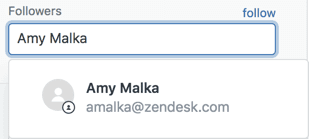
Open the ticket in Zendesk and find the Followers field in the properties panel on the left side, beneath the Assignee field.
Step 2: Add followers
In the Followers field, enter a user's name, email domain, or organization name and the relevant results appear. Internal users such as agents, light agents, and administrators can be followers. To quickly add yourself as a follower, click "follow".
Step 3: Remove followers when needed
To remove a follower, click the delete button (X) in the person's name box in the Followers list. To quickly remove yourself, click "unfollow".
Automating CC and follower management
Manually adding CCs and followers to every ticket gets old fast. Fortunately, Zendesk offers several ways to automate this process.
Using triggers for automatic addition: Triggers let you add followers or CCs automatically based on ticket conditions. This works well for predictable scenarios where you always want the same outcome. For example, you might add an account manager as a follower for all tickets from a specific organization, or CC a technical team when tickets are tagged with "bug".
Using macros for agent-initiated addition: Macros are one-click shortcuts that agents apply when they determine a follower is needed. Unlike triggers, macros require human judgment. For example, an agent might apply an "Escalate to Tier 2" macro after determining a ticket is too complex for frontline support.
So which should you use? If an agent needs to evaluate the ticket first, use a macro. If the condition is always the same (like "all tickets from Acme Corp"), use a trigger.
There's one significant limitation you should know about: Zendesk's "Add follower" action only accepts static user selections. You can't use placeholders or custom field values to dynamically select who gets added. This becomes a problem when you want a macro that adds "whoever is the account manager for this organization."
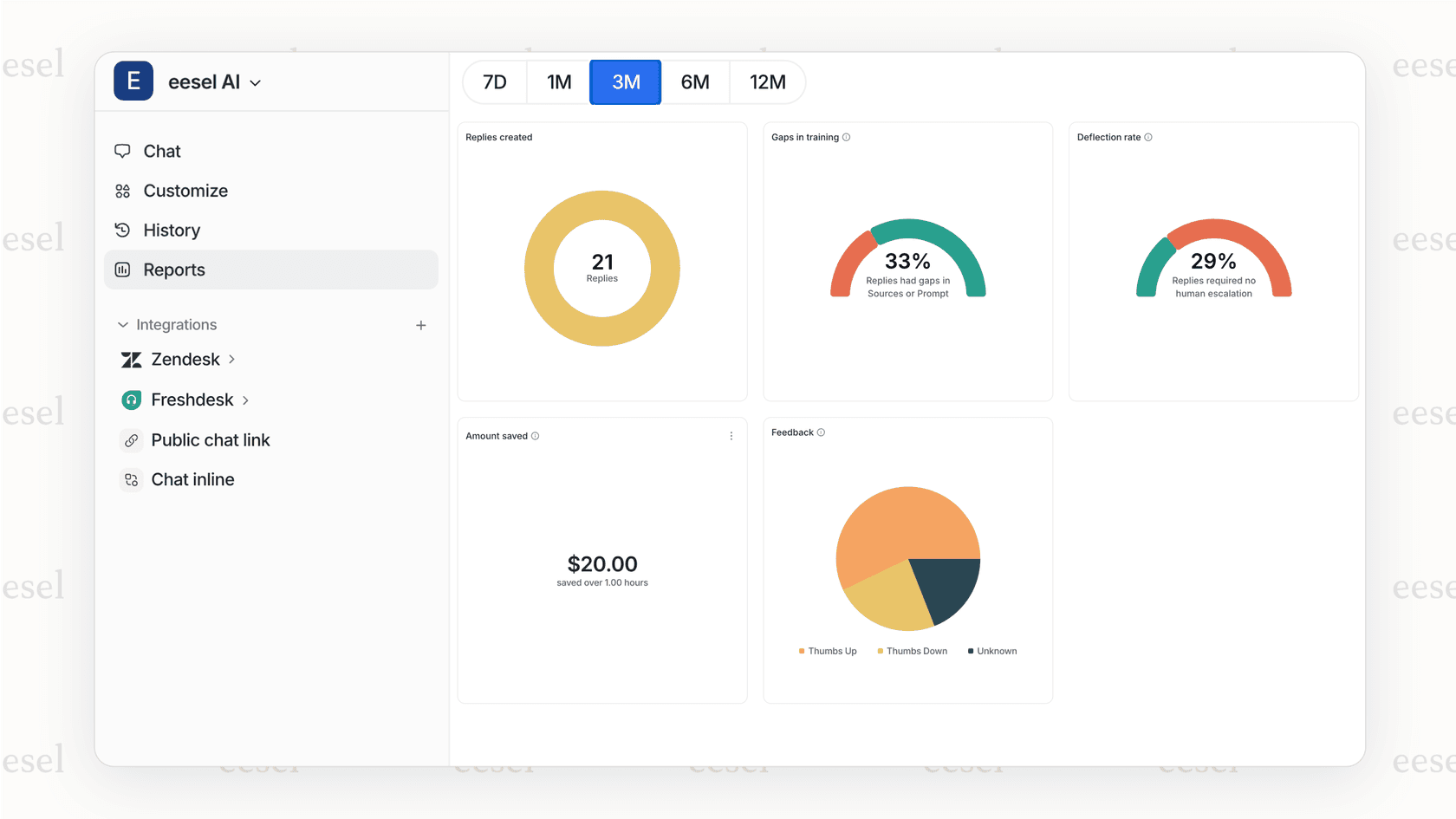
At eesel AI, we've built an AI teammate that integrates directly with Zendesk to handle follower automation that goes beyond static macro actions. You can define rules in plain English, like "add the enterprise account manager for tickets from organizations with over 500 employees." If you're finding Zendesk's native automation limiting as you scale, we can help.
Common mistakes and best practices
Even with the right setup, things can go wrong. Here are the most common mistakes teams make with CCs and followers, and how to avoid them.
Mistake 1: Using CCs for internal coordination
When you CC an agent on a ticket, their email address becomes visible to the end user. This exposes your team's internal email structure and can lead to customers directly contacting agents outside of Zendesk. For internal coordination, always use followers.
Mistake 2: Adding too many followers
Followers receive notifications for every comment on a ticket, including internal notes. If you add ten followers to a high-volume ticket, you create notification fatigue. Review follower counts regularly and remove people who no longer need updates.
Mistake 3: Expecting CCs to see internal notes
CCs only receive notifications for public comments. If your team adds internal notes to a ticket, CCs won't be notified. If you need someone to see internal updates, they need to be a follower, not a CC.
Best practices to follow:
- Train agents on the CC vs follower distinction. Make sure your team understands when to use each.
- Document your workflow. Create a simple reference explaining when to use CCs vs followers and how your automation works.
- Test in sandbox first. Always verify new notification configurations in your Zendesk sandbox before deploying to production.
Getting the most from Zendesk ticket collaboration
Managing who gets notified about ticket updates isn't just about keeping people informed. It's about creating the right visibility for the right people at the right time. When configured well, your notification setup helps teams coordinate without overwhelming anyone with irrelevant updates.
Here's the quick decision framework: Need someone to participate in the customer-facing conversation? Use CCs. Need to keep internal team members informed privately? Use followers.
If you find yourself creating dozens of macros to handle different scenarios, or if you need dynamic follower assignment that Zendesk can't provide natively, try eesel AI. We'll handle the complexity of intelligent follower routing so you can focus on delivering better customer experiences.


